Figma to STUDIO
Turn your
files
to
live websites
Install plugin

Features
Plug and play. And so much more.
Designing a website in Figma? Easily continue in STUDIO and leverage powerful features like auto-responsive. Your live site is now ready to go.
⌘C+V
10X your workflow
Easily import designs from Figma with a simple copy and paste, then launch your website instantly.

Auto responsive
Leave breakpoints to us
As an industry-first, imported designs seamlessly turn responsive, saving you time from recreating breakpoints.

Asset import
Safe travels
Import images, icons, fonts and colors in a flash.

Multi-page mode
No page limits
Bring over multiple pages at once for complex projects.

How it works
4 Steps to your new website
All you need are your Figma and STUDIO accounts. Start creating now.
1
Install the Plugin
Try with the sample file available right after
installation.

Install plugin

2
Prepare your Figma file
Optimize our Figma file to speed up the process.
Follow the tips below:
Tips for a smooth import

3
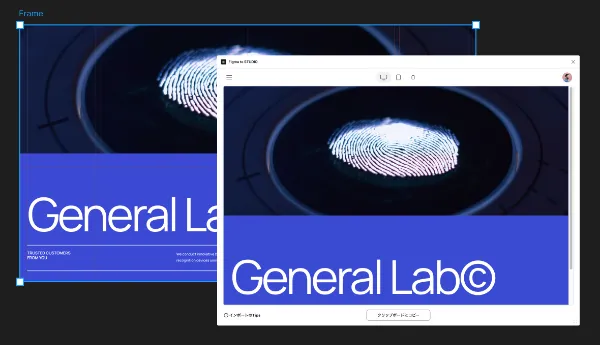
Select frames and Copy your
design
For pages with multiple layers, try importing by
section.
4
Paste your design in STUDIO
In the STUDIO editor, paste with & + V to complete
the import.

Design in desktop size
Designs created in Figma for tablet or mobile sizes will be recognized as desktop size in STUDIO.
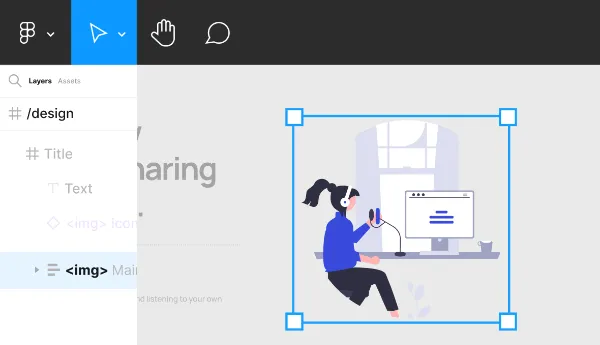
Add <img> to layer names for illustrations and images
Prevent distortions in icons and illustrations by adding <img> to the beginning of layer names in Figma.
Use Page mode (Beta) for importing multiple pages
To import multiple pages, use Page mode (Beta). Add "/" at the beginning of the frame name to import it as a separate page.
Note: Page mode is still in beta, so there may be bugs that can lead to unexpected behavior.
Install the plugin and get started
Install the plugin